Resume Builder Auto-Save: Protect Your Resume While You Edit
Learn where resume autosave stores your draft, what can remove browser data, and how to save and restore an editable JSON backup in Open Resume Kit.
Open Resume Kit Team · · 3 min read · Updated
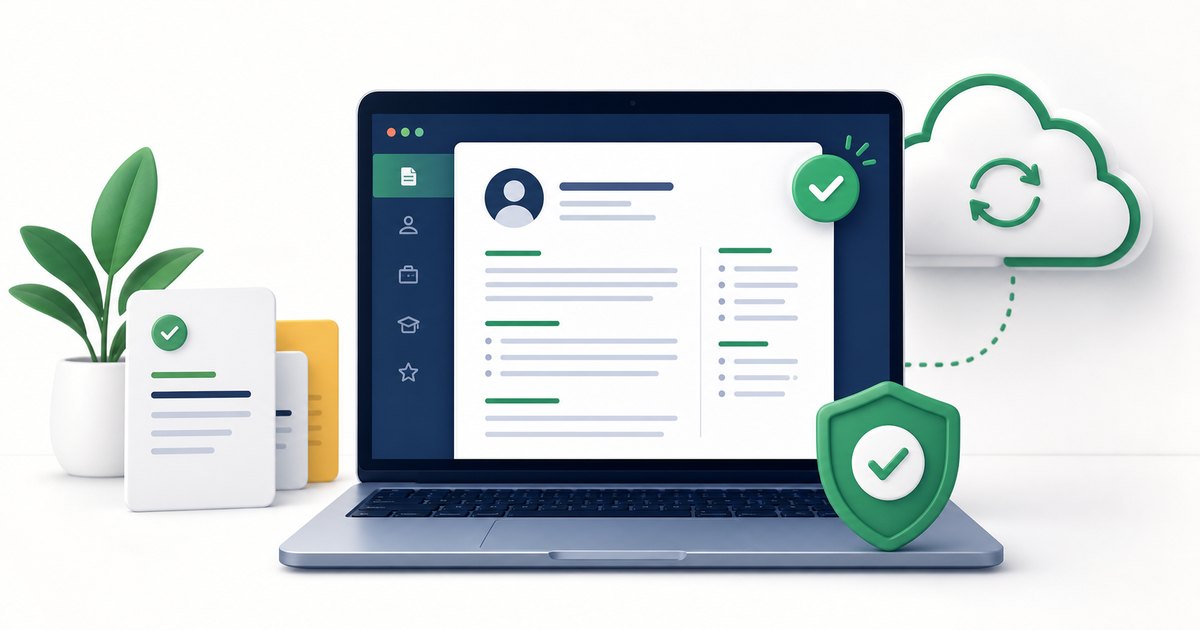
Open Resume Kit saves your resume draft in your browser while you edit. It does not upload that draft to a resume account or synchronize it between devices. Autosave is convenient, but it is not a substitute for a downloaded backup.
Where Your Resume Is Saved
The builder uses local browser storage. Returning to the same site in the same browser profile can restore a saved draft when that storage is still available.
A draft on your laptop is not automatically available on your phone. Another browser, another profile, or a different site address can have separate storage. A PDF is a finished document; it is not the editable JSON backup used by the builder.
What Can Remove a Local Draft?
- Clearing cookies and site data can remove browser storage.
- Private browsing may discard its storage when the private session ends.
- Browser settings, storage limits, or device problems can prevent a save.
- Loading another JSON file can replace the draft you are editing.
- Edits that have not been saved successfully may be lost after a crash.
Do not rely on a browser crash recovery feature or a continuously open tab as your only copy.
Save an Editable JSON Backup
- Open the resume builder and review your current details.
- Click Save Data in the toolbar to download a JSON file.
- Check that the file appears in your downloads and has a recognizable name.
- Keep it in a folder you can find again, with a date or target role in the filename.
- Make another backup after substantial changes and before loading a different draft.
The backup contains personal resume information. Store it privately; do not post it in a public repository or share it as a sample file.
Restore a Draft or Move to Another Device
First save the draft already open on the destination device if you want to keep it. Then open the builder, choose Load Data, and select your JSON backup. Review the name, experience, links, and formatting after importing.
For example, a job seeker can save a software-engineer draft on a laptop, transfer the JSON file privately, and load it on another computer. That transfer is manual; no account synchronization is involved.
Keep Separate Application Versions
A practical filename might be Resume-Backend-2026-10-23.json. Keep the exported PDF beside it so you know which editable draft produced the file you sent.
If you tailor the same resume for a second role, save another JSON version before replacing the first one. The local draft is a working copy, not a version-history system.
If Your Draft Does Not Reappear
Check that you are using the same browser profile and site address. Look for a JSON backup before clearing more browser data. Without a remaining local draft or backup, the builder cannot retrieve a missing resume from a server.
After restoring, review your exported PDF and use the ATS checker for a separate text review.